Tabla de Contenido
– Understanding Heatmaps in Website Analytics Tools
– Why Heatmaps Matter for User Behavior Tracking
– Heatmaps Setup in SimplifyAnalytics: Step-by-Step Guide
– Best Settings for SimplifyAnalytics Heatmaps
– Using Heatmaps to Optimize User Experience
– Common Mistakes in Heatmap Tracking SimplifyAnalytics Users Should Avoid
– FAQs
Understanding Heatmaps in Website Analytics Tools
If you’re already using website analytics tools but haven’t explored heatmaps yet, you’re missing critical visual data. Heatmaps are a form of data visualization techniques that show where users click, scroll, hover, and lose attention on your pages. These UX heatmaps are instrumental for user interaction analysis without needing direct user feedback.
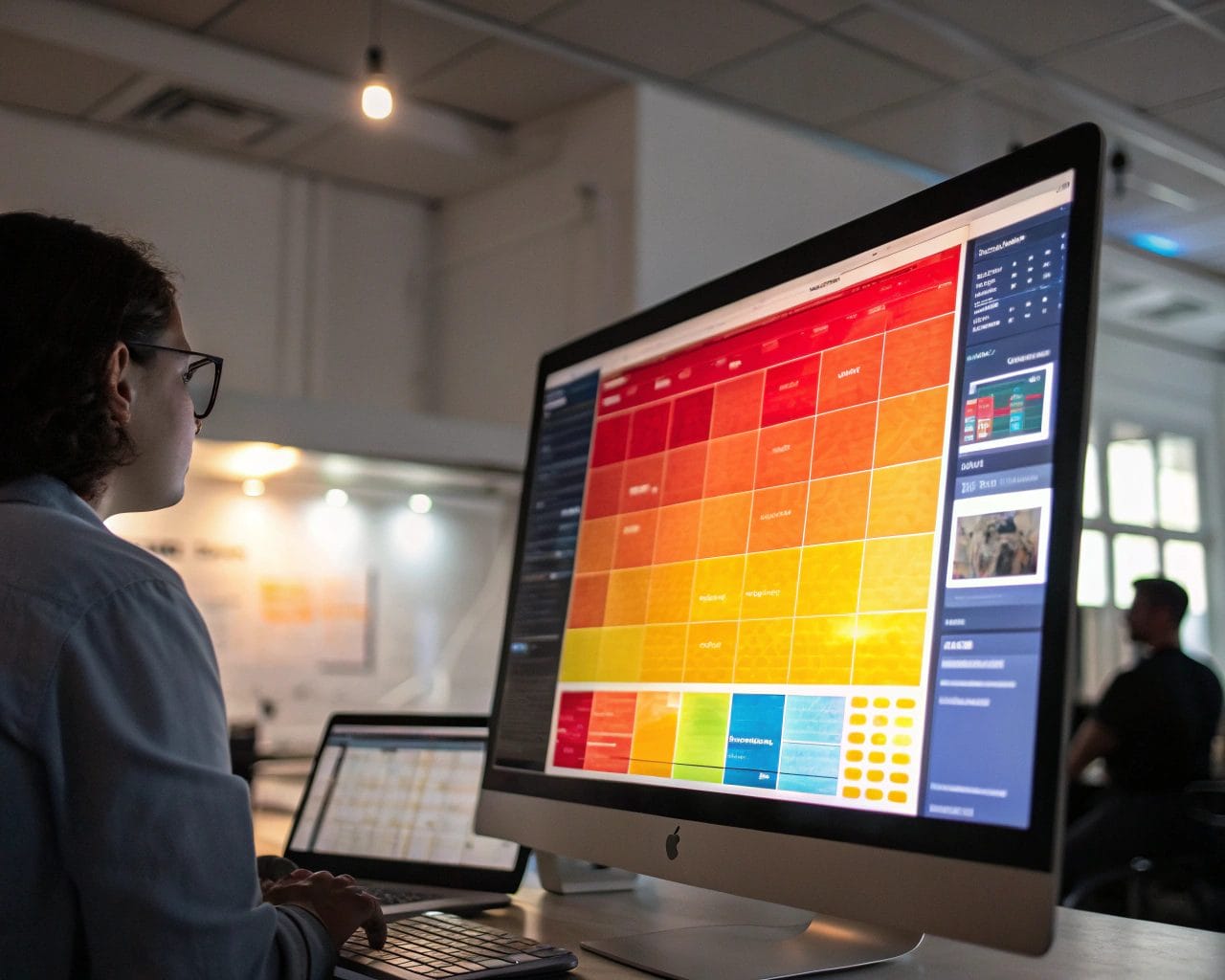
SimplifyAnalytics heatmaps bring clarity to your website performance analysis by giving color-coded insights into what parts of a page receive the most interaction. The hotter the area (red), the more engagement it gets. This visual layer adds context to your usual traffic data, providing a bridge between raw numbers and user experience.
Why Heatmaps Matter for User Behavior Tracking
When you launch a feature or redesign your homepage, how do you know if users notice it? Traditional metrics may tell you the number of pageviews or bounce rate, but not where visitors are engaging. That’s where user behavior tracking through heatmaps becomes essential.
With SimplifyAnalytics, you go beyond surface-level stats. You see exactly where users click, how far they scroll, and what gets ignored. This helps you:
- Identify dead zones where users aren’t engaging
- Uncover areas that attract clicks but aren’t meant to be clickable
- Measure attention on key CTAs and product sections
- Spot layout issues that lead to user confusion
Understanding these patterns lets you optimize user experience through direct evidence.
Heatmaps Setup in SimplifyAnalytics: Step-by-Step Guide
Learning how to set up heatmaps in SimplifyAnalytics takes just a few minutes but delivers lasting value. Follow this SimplifyAnalytics heatmap setup tutorial to configure everything properly from the start.
- Log into your account at getsimplifyanalytics.com
- Select the domain you want to track.
- Navigate to the sidebar and click on “Heatmaps”.
- Click the “New Heatmap” button.
- Enter the URL path (not the full URL) of the page you want to track (e.g.,
/pricing,/product-page). - Set your targeted devices: Desktop, Mobile, or Both.
- Choose your capture frequency (e.g., sample every visitor or every 5th visitor to manage resource consumption).
- Click “Create” to start tracking.
The script automatically captures interactions. You don’t have to update your global tracking code separately.
To verify your heatmap configuration guide was successful, open the live page in an incognito window and interact like a regular user. Data will start populating typically within an hour depending on traffic.
Best Settings for SimplifyAnalytics Heatmaps
Setting up is easy, but to maximize insight, you need the best settings for SimplifyAnalytics heatmaps:
- Set a high-traffic page first: Start with your homepage or main landing page to collect fast, actionable data.
- Segment traffic by device type: User behavior often differs on desktop vs mobile. Heatmaps allow you to isolate this without additional configuration.
- Use a tracking threshold: Instead of tracking 100% of all visitors, use random sampling for faster processing and broader patterns.
- Define clear goals: Know if you’re testing for click optimization, scroll behavior, or CTA engagement. This keeps analysis focused.
- Tag heatmaps properly: When managing multiple pages, always label heatmaps with intuitive names like “Mobile Checkout Page” or “Features – Desktop”.
Using Heatmaps to Optimize User Experience
Once you’ve configured the system, how do you apply the insights? Here are practical ways to improve website with heatmaps:
- CTA Visibility: Heatmaps show if users see your call-to-actions. If scroll heatmaps reveal that 70% of users never see your sign-up button, you need a layout change.
- Navigation Refinement: Click heatmaps identify menu items or footer links with little interaction. This is an opportunity for reordering or renaming items for better clarity.
- Remove Distractors: If users frequently click on non-interactive elements, it wastes their attention. Use this data to redesign misleading areas.
- Form Optimization: See which form fields are skipped or hovered on repeatedly, indicating hesitation or confusion.
One client adjusted their product page layout after analyzing UX heatmaps. By moving testimonials above the fold and enlarging the “Buy Now” button, their conversions increased by 18% in two weeks.
Common Mistakes in Heatmap Tracking SimplifyAnalytics Users Should Avoid
Accurate heatmap tracking in SimplifyAnalytics requires attention to detail. Avoid these typical mistakes:
- Tracking pages with dynamic content: Heatmaps work best on static pages. For dynamic applications, the heatmap image could become outdated quickly.
- Wrong URL paths: Always enter relative paths like
/about, not full URLs likehttps://site.com/about. - Overtracking: Monitoring every small page leads to clutter. Focus on goal-oriented URLs.
- Expecting heatmaps to replace all metrics: Heatmaps support, not replace, quantitative data. Use them alongside session replay, goal tracking, and visitor behavior stats.
FAQs
What is SimplifyAnalytics?
It’s a privacy-first web analytics platform offering website performance analysis, session replays, and heatmaps in a lightweight, cookie-free format.
Do I need cookies enabled for SimplifyAnalytics heatmaps?
No. When using lightweight mode, SimplifyAnalytics can track without using cookies, maintaining GDPR and CCPA compliance.
How frequently do heatmaps update in SimplifyAnalytics?
Data typically appears within 1–2 hours depending on your site’s traffic and sampling rate.
Can I track heatmaps on multiple domains?
Yes, depending on your pricing plan, multiple domains can have distinct heatmaps and dashboards.
Do heatmaps slow down the website?
SimplifyAnalytics uses an ultra-lightweight tracking script (<6 kB) to ensure minimal impact on load speeds.
Take advantage of behavior analytics with streamlined SimplifyAnalytics heatmaps. Whether you’re fixing UI issues or testing new features, these visual tools give a fast path to better decisions.
Ready to enhance your site effortlessly? Explore SimplifyAnalytics plans and set up heatmaps in minutes.